Protecting confidential information: Permissions-based access and user rights
Dynamic permissions for document management tasks
Dynamic permissions in document management protect confidential information and enforce privacy policies
Dynamic permissions provide an effective way to secure and protect sensitive information. The risk of leaked information can be contained by protecting documents from unauthorised access.
The addition of definitions and the ability to enforce policies regarding who is allowed to access, edit and approve documents enables organisations to implement a robust strategy for protecting confidential information. Permissions are a key component of automated, dynamic workflows.
The challenge is to create a folder structure for certain users to have full access to specific folders in a drawer that is automated, without the need for a manual process and constant intervention to set permissions. For other users, you can grant or deny access dynamically to these folders based on an index value, all of which is made easier in pre-set dynamic workflows.
Permissions management can be deployed to include app permissions and access requests, which can be granted automatically or moderated. Messaging apps should be treated as special cases as dangerous permissions can lead to disastrous results that compromise restricted data. Third party apps and SMS messages must also be treated with particular caution when granting any level of access or permission, notably when associated with the user’s or your current location.
The aim of permissions management is to protect sensitive information from unauthorised access while granting full or restricted access to approved system users in order to facilitate productivity and collaboration.
What are dynamic permissions in document management and how do they work?
Dynamic permissions in document management refer to access controls that adapt in real time based on specific conditions, user roles or document attributes. Unlike static permissions, which are fixed and pre-defined, dynamic permissions are flexible and responsive, which provides enhanced security and usability in managing documentation and sensitive information. The aim is to maintain optimum secure system runtime for all user types, with minimum human intervention, with automated access controls.
How Dynamic Permissions Work
1. Context-Aware Rules
Permissions are granted or revoked based on context, such as a user’s location, device or time of access. For example, a user may only access a document during work hours from an approved network.
2. Role-Based Access Control (RBAC)
Users are assigned roles and permissions change dynamically according to their role’s requirements. For example, a teacher can access student records they oversee but not those of other classes.
3. Attribute-Based Access Control (ABAC)
Permissions depend on attributes, metadata and indexing like document classification (e.g., “confidential”), user profile attributes (e.g., department or clearance level), or project association.
4. Workflow Integration
Permissions can change during a document’s lifecycle. For example, a document may be editable during drafting but only viewable after final approval.
5. Real-Time Policy Updates
Admins can define policies that update permissions instantly based on new data or changes in organisational policies.
Benefits of Dynamic Permissions
Improved Security Reduces unauthorised access by aligning permissions with current conditions and roles.
Increased Flexibility Accommodates organisational changes, such as role shifts or project-specific needs.
Enhanced Compliance Helps enforce access controls required by regulations like GDPR or HIPAA.
Better Collaboration Allows appropriate access without compromising security, even for temporary users or external collaborators.
Dynamic permissions ensure that access to documents is precisely controlled and evolves with organizational needs, providing a secure and efficient way to manage sensitive information.
Case Dynamic Permissions Example: Groups
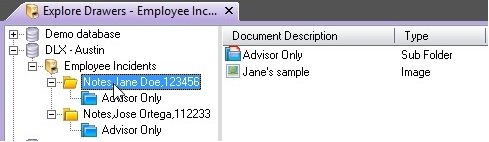
Employee_Advisors Advisor users receive permissions to all folders in the Employee Incidents drawer. Advisor Only sub-folder contains documents that are only to be viewed/edited in this Advisor group.
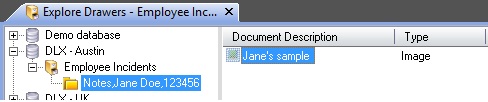
Employee_Users Users with permissions may only view documents within the folder associated with their name. Advisor Only sub-folder and documents are not visible to this Employee_Users group in the Employee folder.
Below is a sample of an Employee Incidents drawer with dynamic permissions
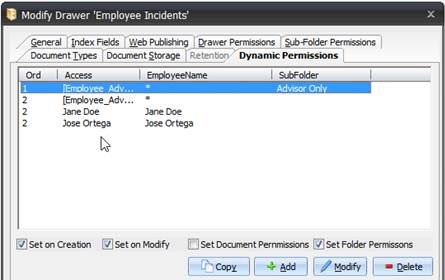
When an Employee Advisor creates a new folder for an employee the permissions are automatically and correctly generated. For the Advisor Group and the Employee selected in the EmployeeName folder index both will have access to this folder.
The Advisors Only sub-folder’s permissions are set so that only the Employee_Advisors group have access to this sub-folder.
When logged in as Employee Advisor it is possible to view all folders
When logged in as Employee User it is only possible to view the assigned folder, and the user cannot view Advisor Only sub-folder and contents of that folder.
Dynamic permissions are automatically applied when a document or a folder is created or amended (index fields change).
Whether or not, and how, dynamic permissions are applied, can be determined simply by checking tick boxes:
Set on Creation (When the document or folder is created)
Set on Modify (When the document or folder indexes are changed)
Set Document Permissions (Set permissions for the document)
Set Folder Permissions (Set permissions for the folder and sub folders)
Dynamic permissions in document management is admin-light and protects your sensitive information.
Best Practices: Dynamic and Role-Based Permissions
Dynamic and role-based permissions are essential for managing access control in applications. Best practices include:
Least Privilege Principle Grant users only the minimum permissions necessary to perform their tasks. This reduces security risks by limiting exposure.
Role-based Access Control (RBAC) Assign roles with predefined permissions based on job functions, making it easier to manage and scale user access.
Dynamic Permissions Use attribute-based access control (ABAC) to allow real-time access decisions based on context, like time, location, or device.
Hierarchy and Inheritance Implement role hierarchies where higher roles inherit permissions from lower roles, simplifying role management.
Auditing and Logging Regularly audit permissions and log access events to detect and respond to unauthorised actions.
Revocation and Updates Ensure permissions are promptly updated or revoked when roles or contexts change, like user transfers or terminations.
Granularity Use fine-grained permissions to provide precise control over access, avoiding overly broad permissions.
Q&A on Role-Based Permissions
Q1: What are role-based permissions? A1: Role-based permissions (RBAC) are a security model that grants access rights based on a user’s role within an organisation. Each role (e.g., admin, manager, employee) is assigned specific access privileges, determining what actions the user can perform on documents or resources, such as read, write, edit or delete. Administrators can determine default user settings and permissions structure, which adapt dynamically when content or user status changes.
Q2: How do role-based permissions work in document management systems? A2: In document management systems, RBAC ensures that only authorised individuals can access or modify certain documents. For example, an admin may have full access to all documents, while a user might only have read access to specific files. Roles are defined according to organisational needs, and permissions are enforced automatically based on these roles. Permissions are a built-in function of automated, dynamic workflows that can be assigned to the entire workflow.
Q3: Why are role-based permissions important for security? A3: RBAC minimises the risk of unauthorised access by ensuring users can only access documents and systems necessary for their tasks. By limiting access based on roles, organisations can control sensitive data more effectively, reduce the potential for data breaches and ensure compliance with privacy regulations. In terms of workflow, the benefits are that users are immediately aware of new tasks and can build frequency lists.
Q4: Can role-based permissions be adjusted over time? A4: Yes, role-based permissions are flexible and can be adjusted as roles change or users transition to different responsibilities. For instance, in Document Manager, when an employee is promoted or transferred, their access level updates dynamically to reflect their new role, ensuring they have appropriate permissions without unnecessary access to sensitive information. An organisation’s data and new inputs respond dynamically to role changes. You can effectively define values t any time.
See Document Manager in Action >>>>
Protecting Sensitive Information: Key Principles
In today’s digital age, protecting sensitive information is critical for individuals and organisations to prevent data breaches, identity theft and unauthorised access. Here are the key principles for safeguarding sensitive information:
1. Data Classification
Identify and categorise sensitive data based on its level of confidentiality (e.g., public, internal, confidential, restricted).
Implement appropriate security measures based on data classification.
Use role-based access control (RBAC) and multi-factor authentication (MFA) to restrict access.
Regularly review and update user permissions.
3. Data Encryption
Encrypt sensitive data in transit (when being sent) and at rest (when stored) using strong encryption standards.
Use secure communication protocols like TLS/SSL for online transactions.
Protect encryption keys with strong security practices.
4. Secure Storage and Transmission
Store sensitive information in secure environments with proper access restrictions.
Use secure file transfer methods like SFTP instead of regular FTP or email.
Avoid storing sensitive data on unprotected devices.
5. Data Masking and Anonymisation
Apply techniques like masking, tokenisation and anonymisation to obscure sensitive data when full details are not required.
Reduce exposure of Personally Identifiable Information (PII) or financial details.
6. Strong Authentication and Password Policies
Enforce strong, unique passwords with a mix of uppercase, lowercase, numbers, and special characters.
Implement multi-factor authentication (MFA) for added security.
Use password managers to securely store and generate complex passwords.
7. Employee Training and Awareness
Educate employees about phishing attacks, social engineering and best security practices.
Conduct regular security training and drills to ensure compliance with data protection policies.
Encourage a culture of security awareness within the organization.
8. Regular Security Audits and Monitoring
Perform periodic security assessments, vulnerability scans and penetration testing to identify weaknesses.
Use Intrusion Detection and Prevention Systems (IDPS) to monitor suspicious activities.
Maintain logs and review access history to detect unauthorised access.
9. Compliance with Legal and Regulatory Standards
Adhere to data protection regulations such as GDPR, HIPAA, PCI-DSS, and ISO 27001 based on industry requirements.
Establish clear data retention and disposal policies.
Ensure third-party vendors comply with data security standards.
10. Data Backup and Recovery
Maintain regular, secure backups of critical data to prevent data loss owing to cyberattacks or system failures.
Use encrypted, offsite and cloud-based backup solutions.
Test data recovery processes to ensure quick restoration in case of breaches or disasters.
By following these principles, organisations and individuals can effectively protect sensitive information and minimise the risk of data breaches.
Implementing strong security measures, fostering awareness and staying updated with the latest cybersecurity trends are crucial steps toward robust information protection.
Can we help?
We will help you to solve your business process challenges with secure centralised data and AI-powered workflow routing.